
API Keys
Configure API keys to use cloud LLM models for faster processing.
What It Does
Cloud LLM models like OpenAI and Google Gemini require API keys to authenticate your requests. Once configured, you can use these models for features like LLM Polish.
Supported Providers
- Google Gemini —
google:gemini-2.5-flash-lite(default), fast and cost-effective - OpenAI —
openai:gpt-4o-mini, high quality results
Adding API Keys
To add your API keys:
- Open Shuole → Settings → API Keys from the menu bar
- Enter your API key for each provider you want to use
- Click Test to verify the key works
- Click Save to store the key securely
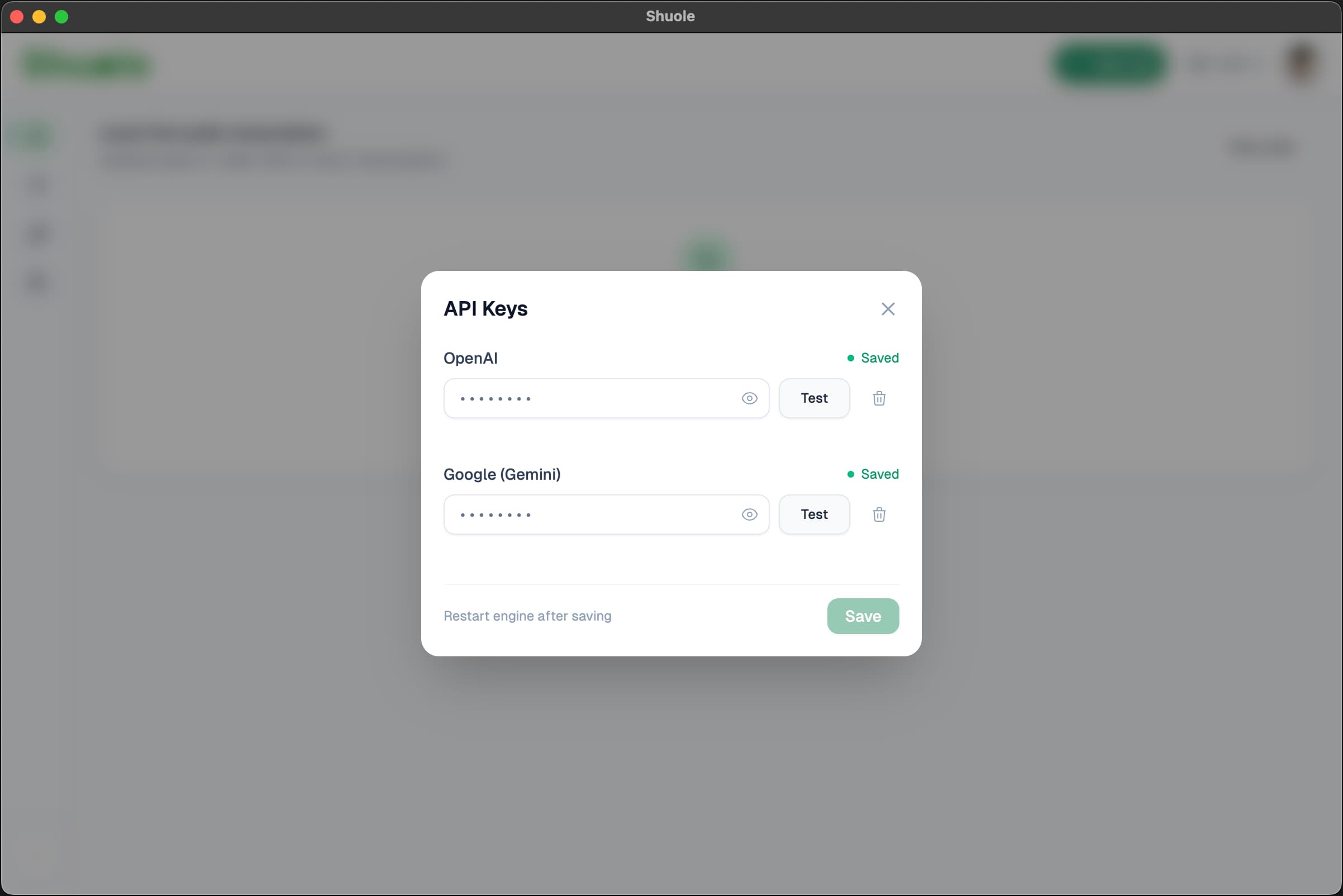
Note: After saving or updating API keys, restart the engine or app for the changes to take effect.
Getting API Keys
You can obtain API keys from the provider websites:
- Google Gemini — Google AI Studio
- OpenAI — OpenAI Platform
Environment Variables
As an alternative to the Settings UI, you can set API keys via environment variables:
GOOGLE_API_KEYorGEMINI_API_KEY— for Google GeminiOPENAI_API_KEY— for OpenAI
Keys saved in Settings take priority over environment variables.
Related
- LLM Polish — Use cloud or local LLMs for punctuation
- Local LLM — Run models locally without API keys