
Speaker Diarization
Identify and label different speakers in your audio — who said what.
What It Does
The Diarize stage analyzes your audio to detect different speakers and labels them as "Speaker 1", "Speaker 2", etc. This enables speaker-aware features throughout the app:
- Color-coded speaker segments in the transcript
- Speaker View mode for easy reading
- Filter and play only specific speakers
- Export with speaker labels included
Working with Speakers
Once diarization is complete, you can use these features on the Results page:
Speaker Mapping
Replace generic labels like "Speaker 1" with real names from your speaker database. See the Quick Start guide for details.
Speaker Filtering
Click on a speaker label to highlight and play only that speaker's segments. The audio player automatically seeks and skips to relevant parts. See View Modes in Quick Start.
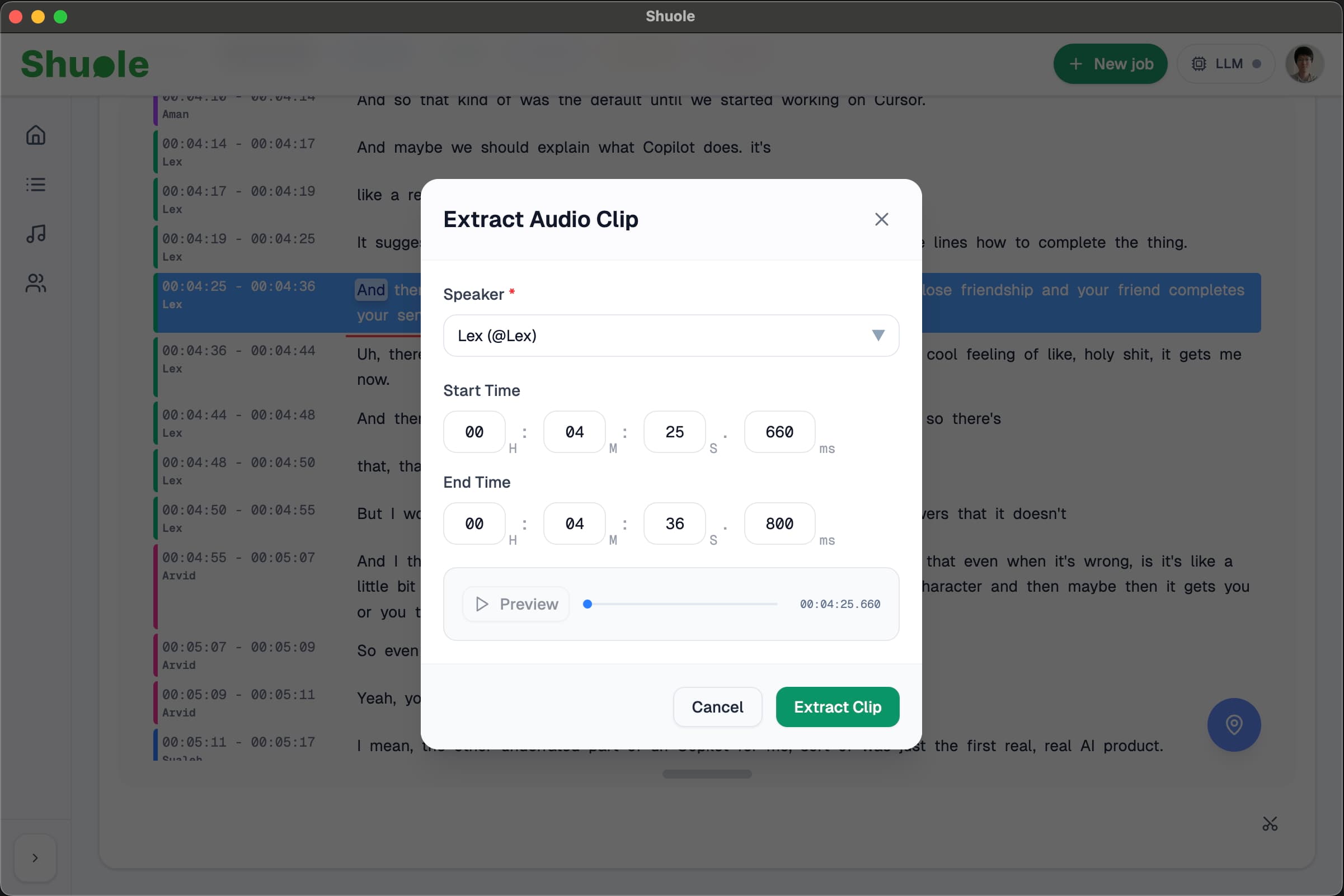
Audio Clip Extraction
Extract audio clips from specific speaker segments to build your speaker database. This is useful for creating voice samples for future reference.
Speaker Database
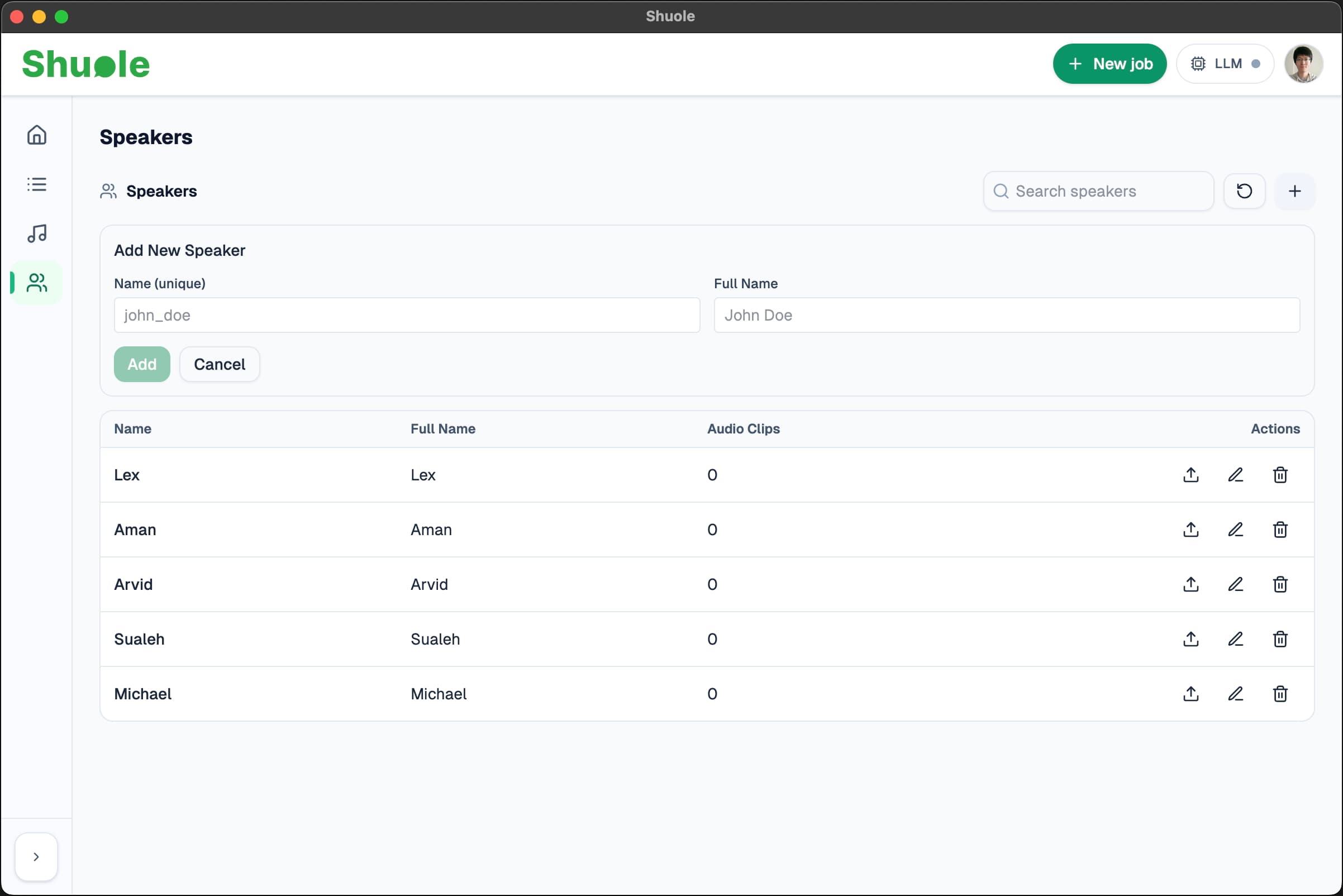
The Speakers page lets you manage a database of known speakers. You can:
- Add speakers with names
- Upload or extract audio clips for each speaker
Limitations
Important: Speaker diarization is not perfect. You may encounter these issues:
- Different people may be recognized as the same speaker (merged)
- One person may be split into multiple speaker labels (fragmented)
- Overlapping speech can cause misattribution
Diarization works best in settings with fewer than 15 speakers and clear turn-taking (minimal overlapping speech).
Future Improvements
We plan to add editing tools that let you manually split and merge speaker tracks to fix diarization errors easily. Stay tuned for updates.
Configuration Options
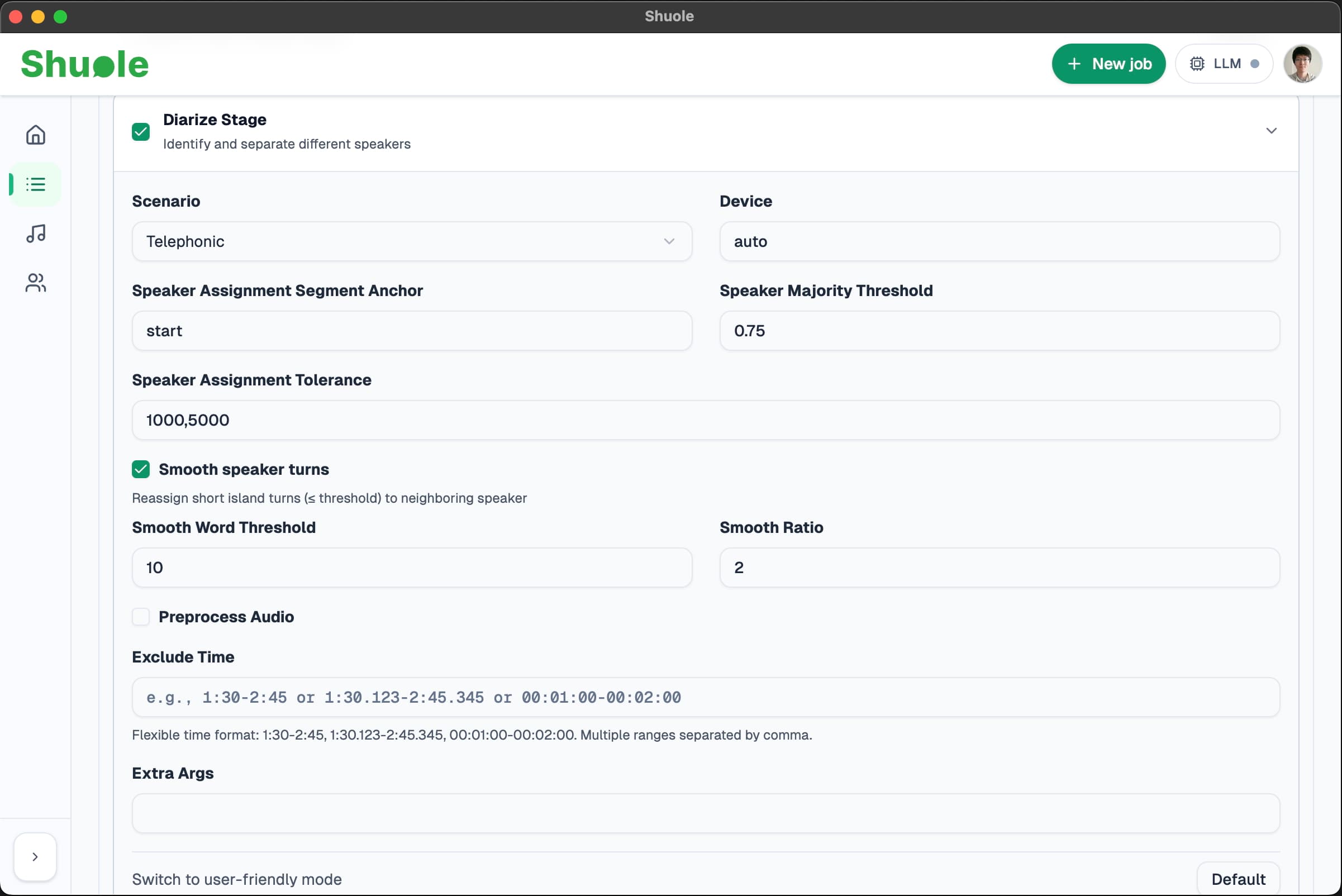
Default settings work for most cases. Click the Advanced button to reveal additional options.
Default Options
In default mode, no options are exposed — the default settings are used automatically. These defaults have been tested to work well in most scenarios.
Advanced Options
Scenario
Default: telephonic. Diarization scenario to optimize for. Options: telephonic, meeting, general.
Note: The default telephonic scenario has been tested to produce the best results in most cases and is not recommended to change.
Device
Default: auto. Processing device to use.
auto— Automatically selects the best available devicemps— Apple Silicon GPU (macOS only)cuda— NVIDIA GPU (Linux/Windows only)cpu— CPU only
Speaker Assignment Segment Anchor
Default: start. Segment anchor point for speaker assignment. Options: start, center, or end.
Speaker Majority Threshold
Default: 0.75. Minimum percentage (0.0–1.0) for majority voting speaker correction at sentence level.
Speaker Assignment Tolerance
Default: 1000,5000. Time tolerance for speaker assignment in milliseconds. Can be a single value (e.g., 2000) or a pair (e.g., 1000,5000).
Smooth speaker turns
Enabled by default. Enable smoothing to merge short speaker islands after majority voting. This reduces fragmentation and improves readability by reassigning short "island" turns (segments with few words surrounded by another speaker) to neighboring speakers.
- Smooth Word Threshold — Default:
10. Maximum words in an island slice eligible for smoothing. - Smooth Ratio — Default:
2.0. Dominance ratio required for the neighbor turn to absorb the island.
Preprocess Audio
Disabled by default. When enabled, cuts excluded time ranges from the audio before processing. When disabled (default), the full audio is processed and excluded ranges are filtered from the RTTM output instead.
Exclude Time
Default: empty. Time ranges to exclude from diarization (e.g., 1:30-2:45,5:00-6:30). You can enter ranges manually or use the shared exclusion block. See Timeline Exclusions for details.
Extra Args
Default: empty. Additional arguments passed to nemo_diarize for advanced users who need to fine-tune behavior not exposed in the UI.
Related
- Speaker Mapping — Map speakers to real names
- View Modes — Speaker View for diarized transcripts
- Timeline Exclusions — Skip sections during diarization