
Timeline Exclusions
Skip unwanted sections of your audio — ads, music, silence, or anything you don't need transcribed.
What It Does
Timeline exclusions let you mark specific time ranges to skip during processing. This is useful for:
- Podcast ads and sponsor segments
- Intro/outro music
- Long silences or background noise
- Off-topic sections you don't need
Two Ways to Set Exclusions
You can configure excluded time ranges in two ways:
1. Shared Exclusion Block
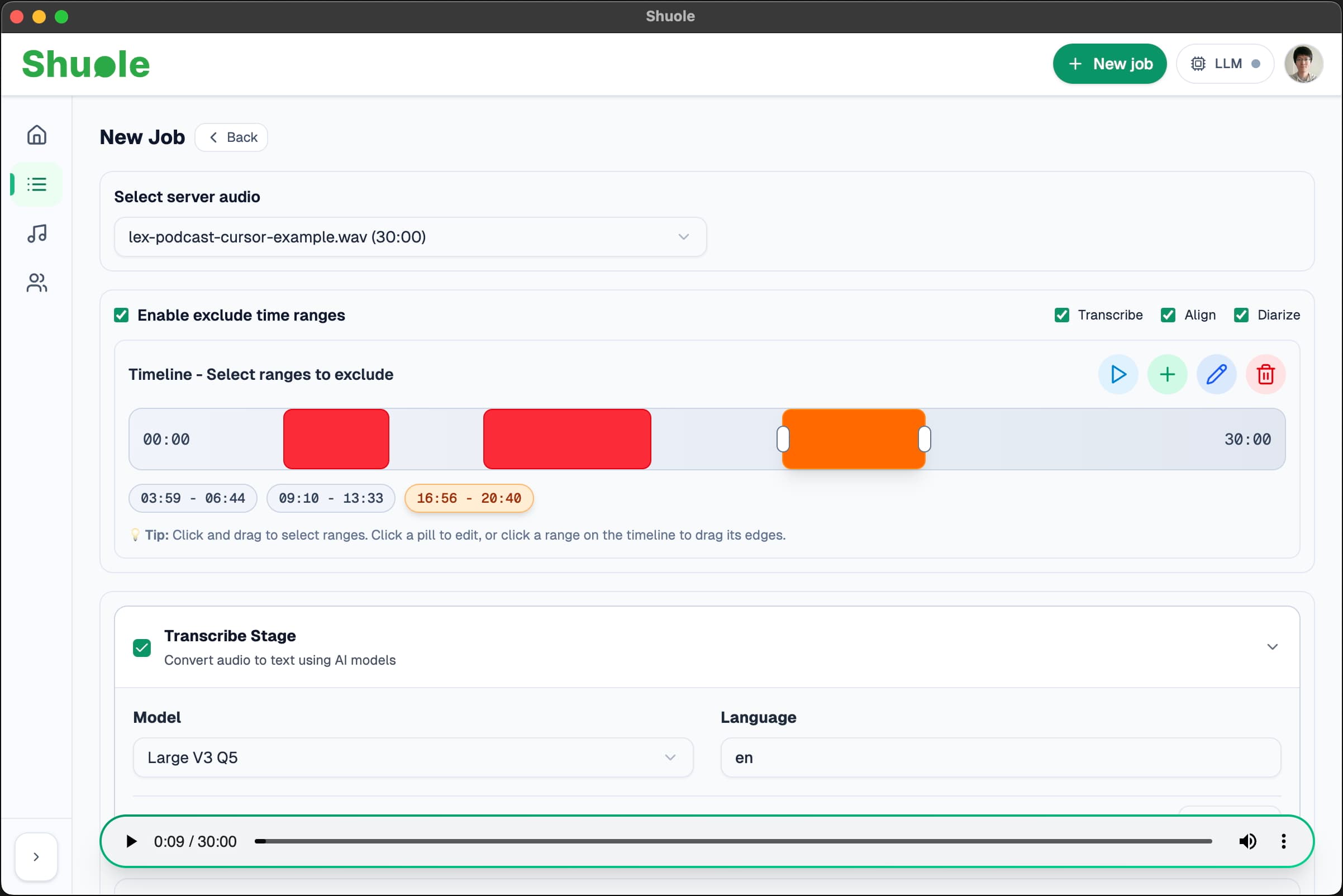
Enable the Exclude time ranges checkbox to show a shared timeline. Ranges you set here apply to multiple stages at once. Use the checkboxes (Transcribe, Align, Diarize) to choose which stages should use these exclusions.
2. Per-Stage Exclusions
Each stage (Transcribe, Align, Diarize) has its own exclusion settings in the advanced configuration. This lets you set different excluded ranges for different stages if needed.
Tip: Most users should use the shared exclusion block. Per-stage exclusions are for advanced use cases where you need different ranges for different stages.
Using the Timeline
The timeline interface lets you visually select ranges to exclude:
Adding Ranges
- Click and drag on the timeline to create a new range
- Click the + button to add a new range (starts after the last excluded range, or at 0:00 if none exist)
Editing Ranges
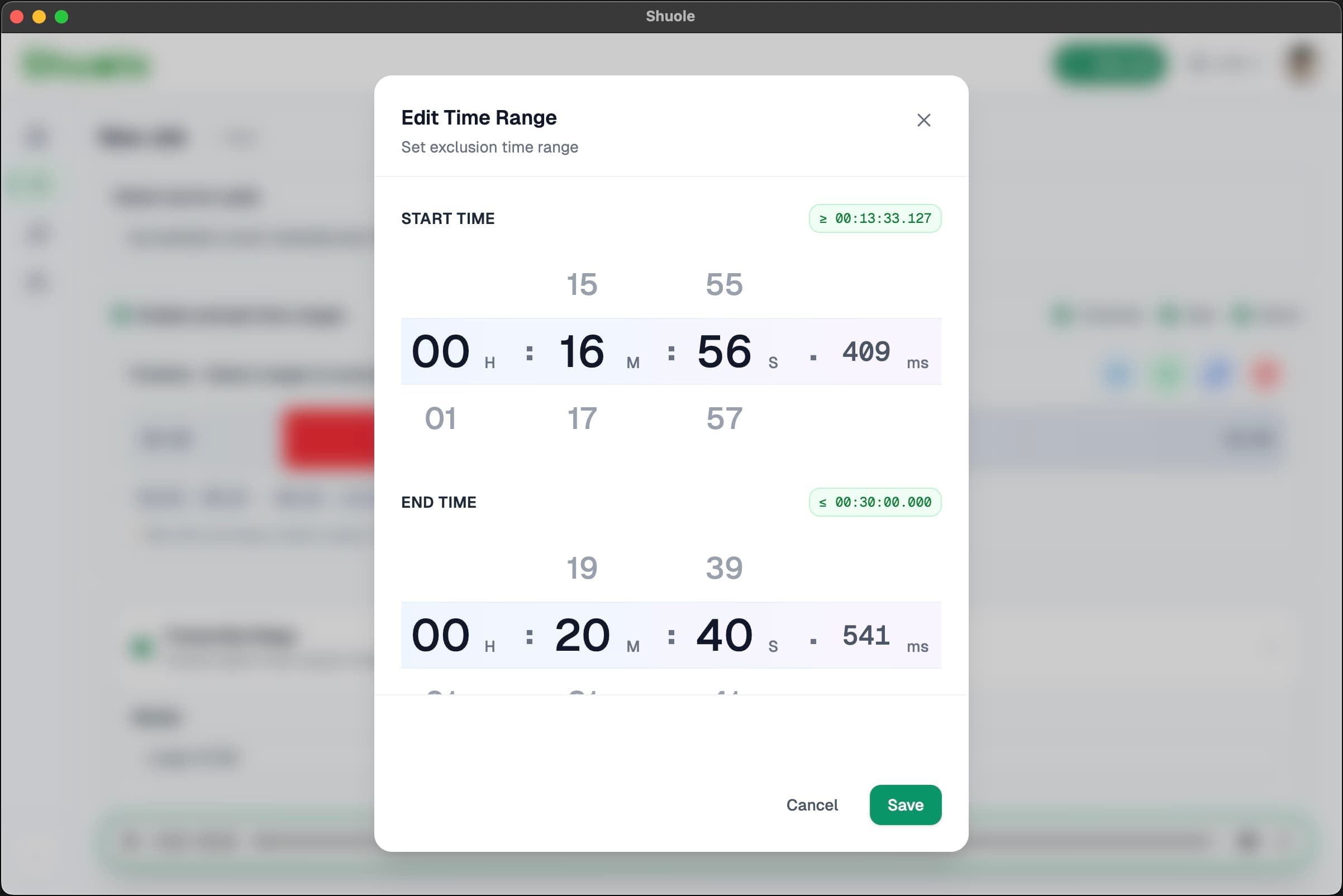
- Click a pill (colored range) to open the precision editor
- Drag the edges of a range on the timeline to resize it
Precision Editing
Click on any range pill to open the time picker modal. This lets you enter exact start and end times with millisecond precision (format: HH:MM:SS.mmm).
Preview & Delete
- Play button — Preview the audio in the selected range
- Edit button — Open precision editor for the selected range
- Delete button — Remove the selected range
Tips
- Multiple ranges: You can add as many non-overlapping ranges as needed.
- Preview first: Use the play button to verify you're excluding the right section.
Related
- Transcription — Configure the core transcription stage
- Word-Level Alignment — Align with exclusions
- Speaker Diarization — Diarize with exclusions