
Quick Start
Transcribe your first audio file in under 5 minutes.
Sign In
When you first open Shuole, you'll be asked to sign in using Google, Apple, GitHub, or email. This is required to help us collect usage statistics that improve the app.
Your audio files are always processed locally on your Mac — they are never uploaded to any server. See our Privacy Policy for details.
Email sign-in tip: If you check the sign-in email on a different device (e.g., your phone), don't click the magic link. Instead, copy the one-time code from the email and enter it in the Shuole app.
Step 1: Upload Audio
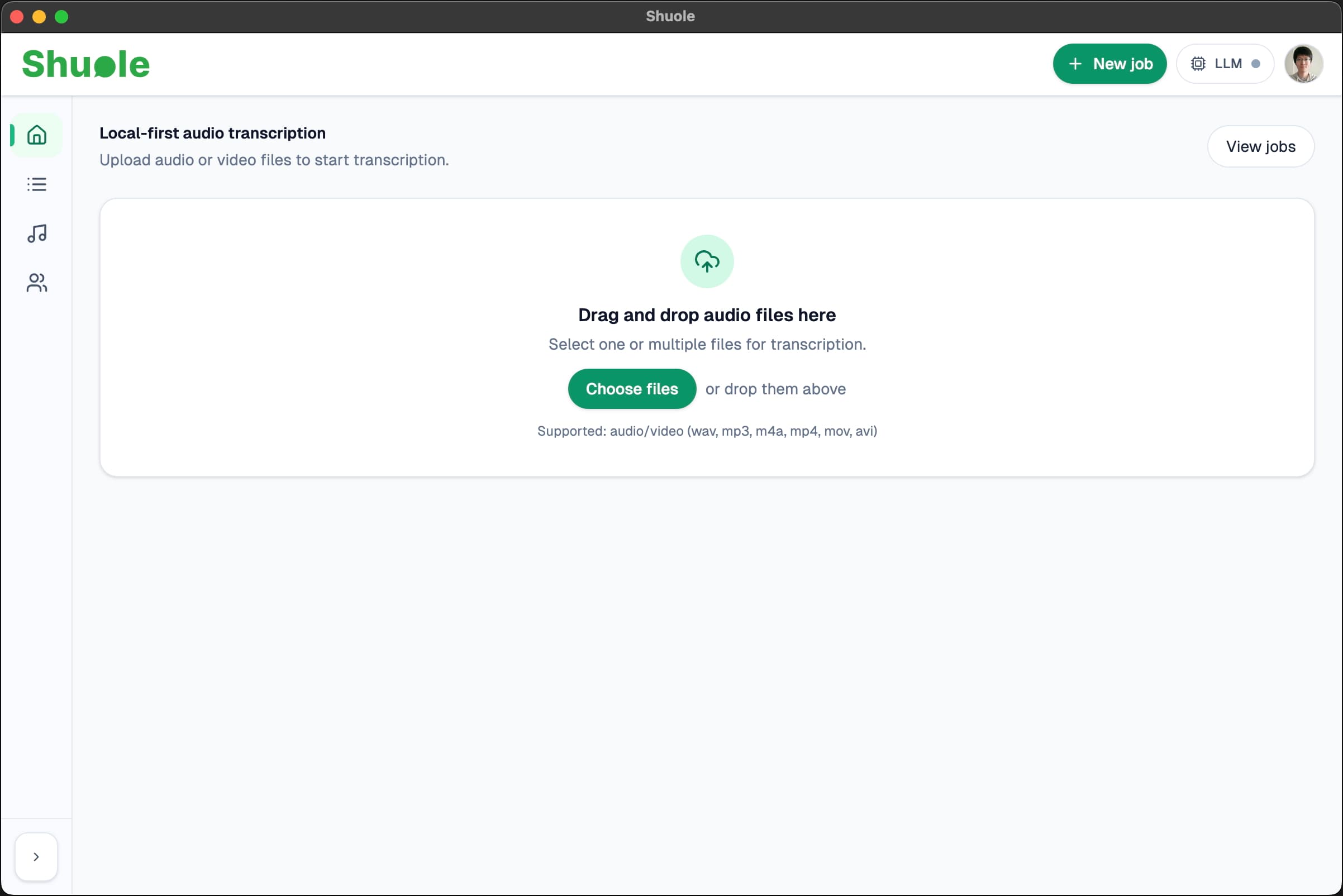
Drag and drop an audio file onto the dashboard, or click to browse. Shuole supports:
- Audio:
WAV,MP3,FLAC - Video:
MP4,MOV,AVI(audio is extracted for transcription)
Note: M4A and OGG files may work but are not officially supported due to inconsistent codec handling. For best results, use WAV, MP3, or FLAC. Video formats work for basic transcription; for advanced stages (align, diarize), we recommend converting to audio first.
Step 2: Configure
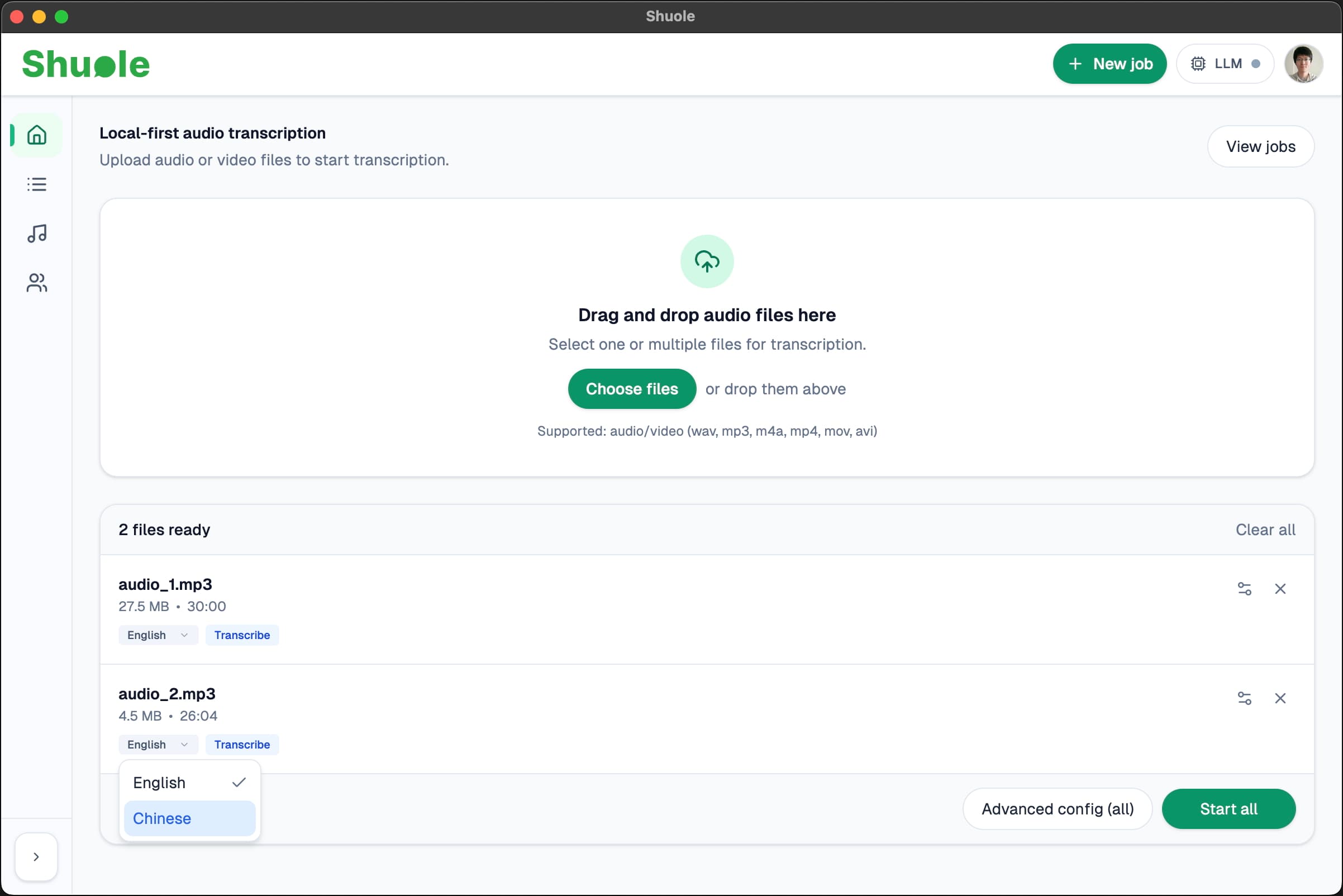
For each file, select a language from the dropdown (English or Chinese). The default pipeline includes only the Transcribe stage — perfect for quick results.
Advanced Pipeline (Optional)
Need more than basic transcription? You can configure the pipeline in two ways:
- Click the small configure icon next to a file to configure that file individually
- Click Advanced config (all) at the bottom to apply the same settings to all files
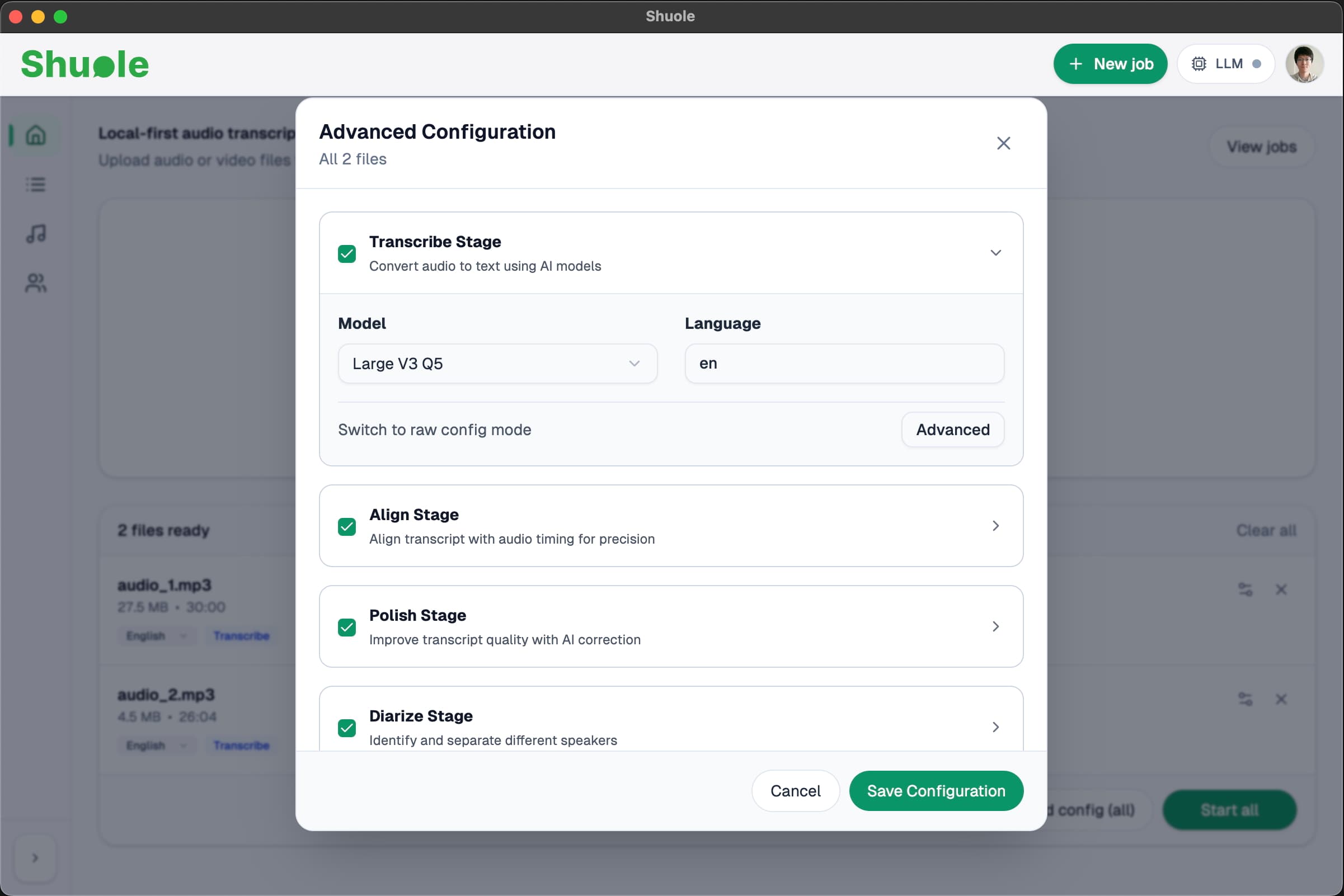
In the configure popover, you can add additional stages:
- Align — Word-level timestamps with precise timing
- Polish — LLM-powered punctuation and grammar fixes
- Diarize — Identify different speakers in the audio
Default settings work well for most use cases. See each stage's documentation page for detailed configuration options.
Note: When you start a job, Shuole checks if the required models are installed. If not, a progress modal appears to download them. This is a one-time download per stage.
Step 3: Transcribe
Click Start all. Your files are added to a queue and processed sequentially — this keeps memory usage low and ensures stable performance.
The Jobs Page
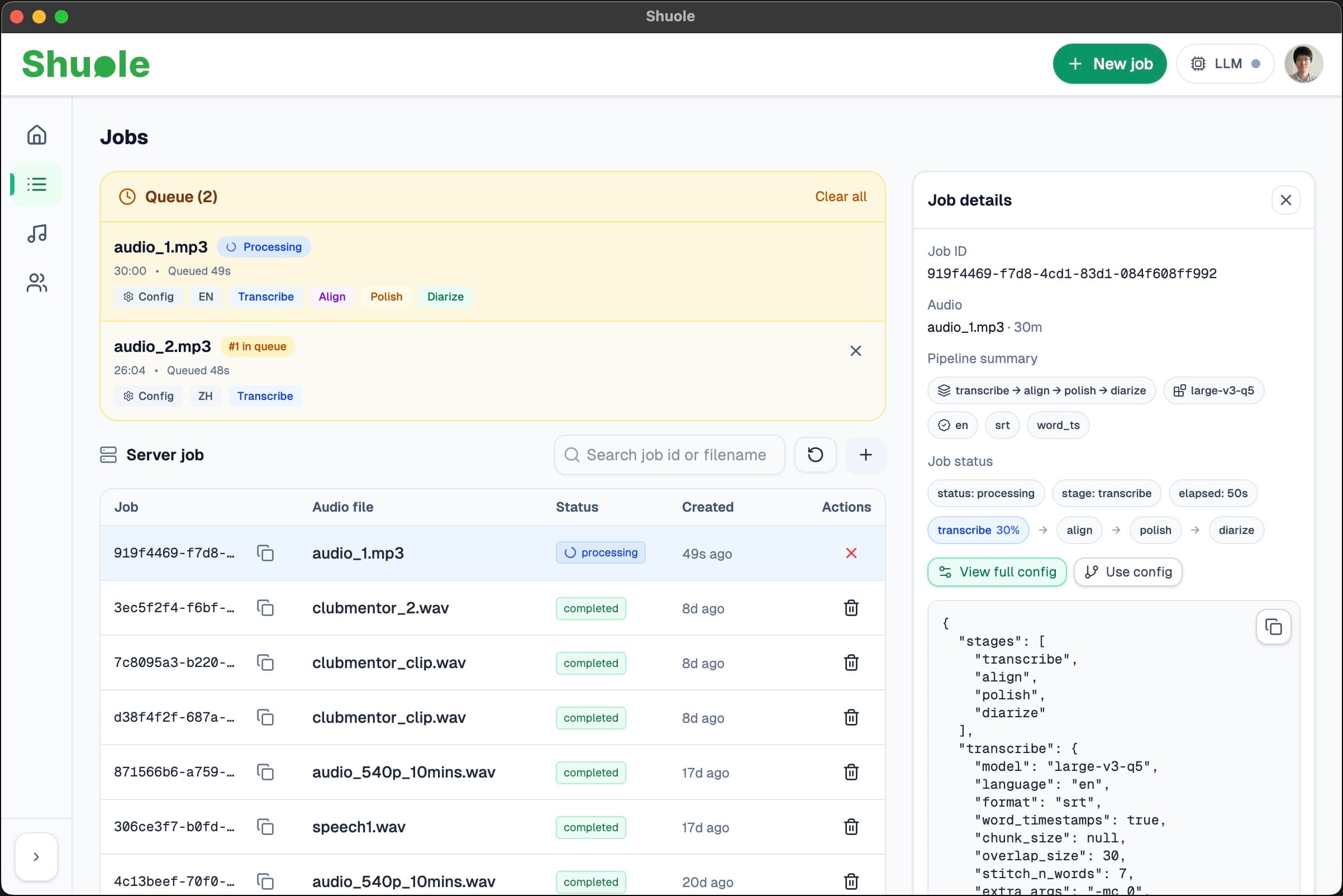
Navigate to the Jobs page from the sidebar to monitor your transcriptions. On desktop, it features a two-column layout:
- Left column: A table listing all your jobs with status indicators (queued, processing, completed, failed)
- Right column: A sticky details panel showing the selected job's information
Job Details Panel
Click any job row to view its details. The panel shows:
- Pipeline summary: Which stages are included (transcribe → align → polish → diarize)
- Job status: Current stage being processed and real-time progress percentage
- Full config: The complete job configuration for reference
Tip: On mobile and tablet, the details panel appears as a slide-up overlay instead of a side column.
Processing time: ~1 minute per 6 minutes of audio on Apple Silicon.
Step 4: Review & Export
Once a job completes, click the View result button in the job details panel to open the transcription result page.
Click to Seek
Click any word in the transcript to jump to that exact moment in the audio. The current word is highlighted as the audio plays.
Note: To enable audio playback, first bind the audio file on the Audios page. Once bound, an audio player appears at the bottom of the page.
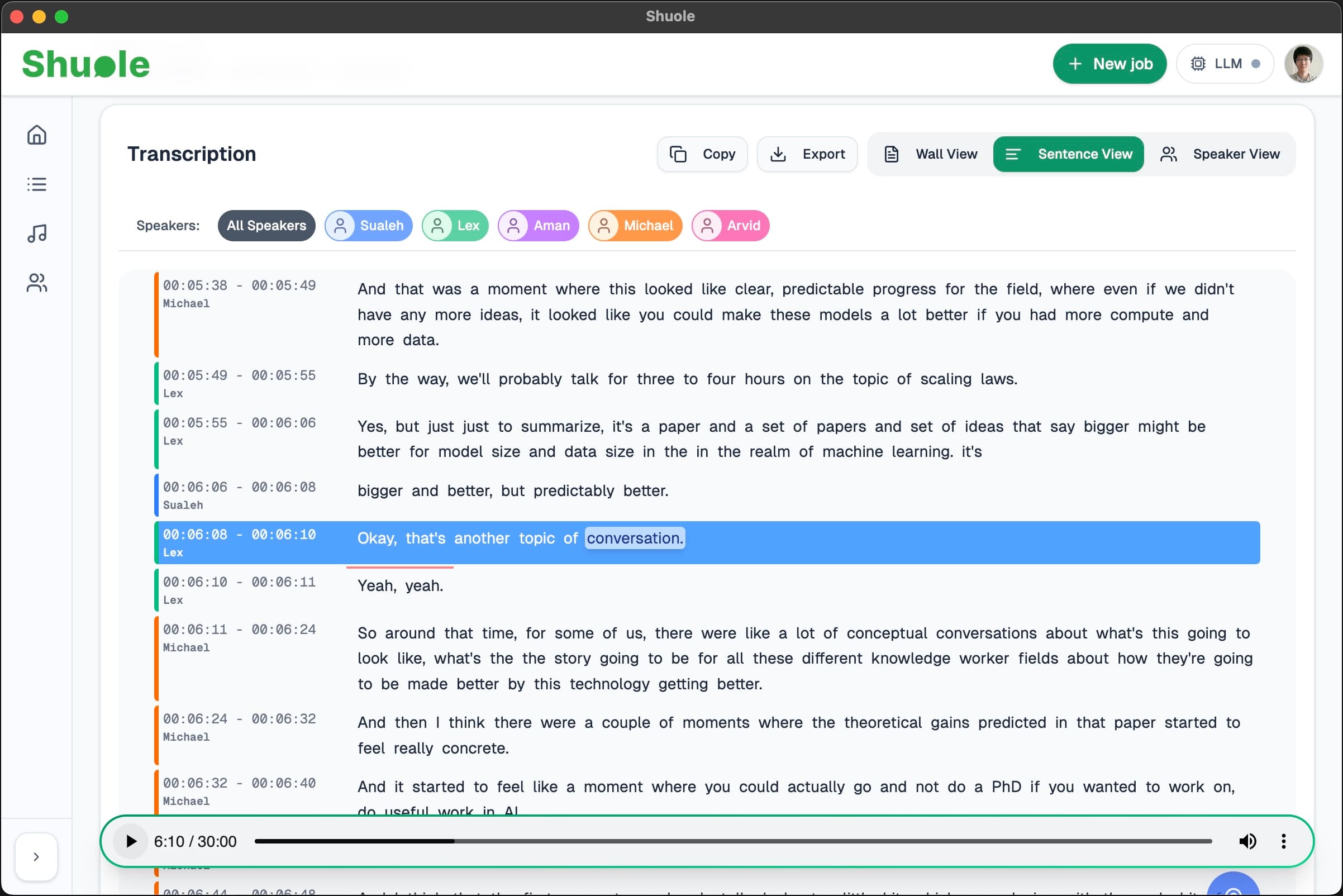
View Modes
Switch between different views using the tabs:
- Wall: All words displayed continuously for quick reading
- Sentence: Text broken into sentences with timestamps
- Speaker: Segments grouped by speaker (only available when diarization is included in the pipeline)
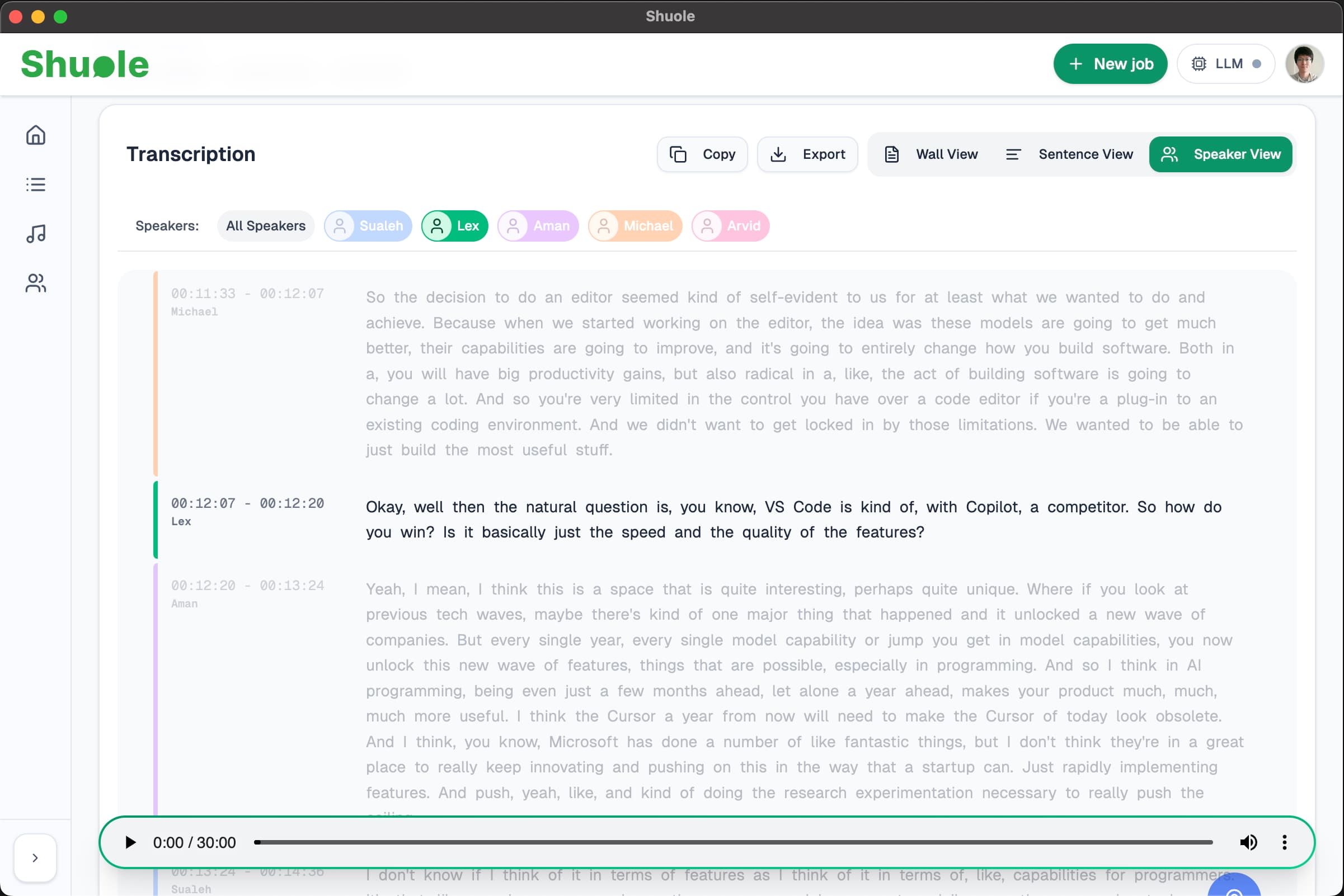
Tip: Click on a speaker label to filter and highlight only that speaker's segments. The audio player will automatically seek and play only the selected speaker's parts.
Speaker Mapping
When using diarization, Shuole labels speakers as "Speaker 1", "Speaker 2", etc. You can map these to real names from your speaker database.
Note: First add speakers on the Speaker Database. Then you can select them from the dropdown to replace generic labels.
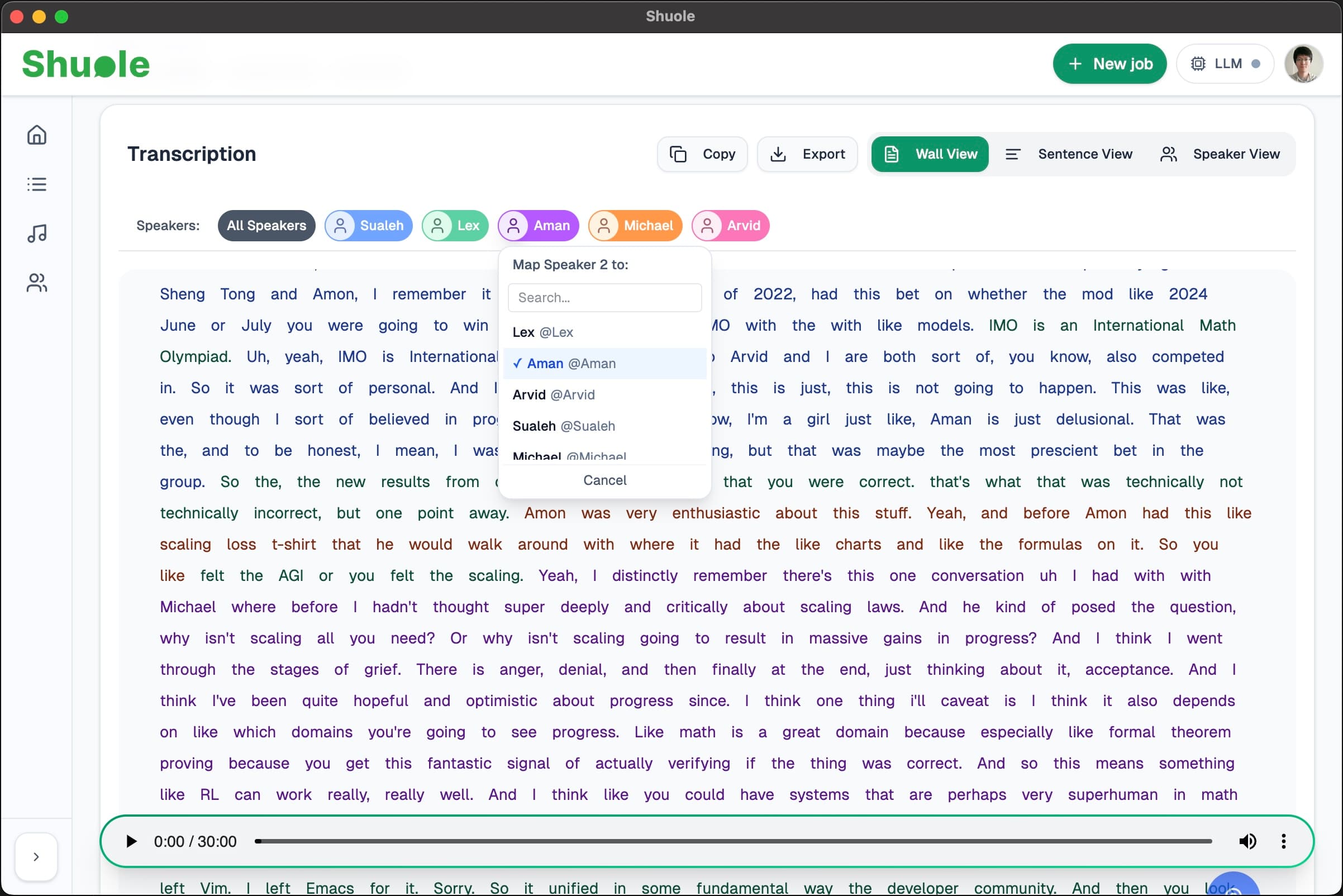
Copy & Export
Click the Copy button to copy transcript text to your clipboard. A popover lets you customize the output with two options:
Scope
Choose what to copy:
- Current line: Only the line you clicked on
- Current speaker: All segments from the selected speaker (available when diarization is enabled)
- Whole file: The entire transcript
Format
Choose what metadata to include:
- Include timestamps: Add start and end times before each segment
- Include speaker: Add the speaker label (available when diarization is enabled)
Example outputs:
Text only:
It's just the foreplay to the something bigger back to yeah
With timestamps:
00:05:12 - 00:05:24
It's just the foreplay to the something bigger back to yeah
With timestamps and speaker:
00:05:12 - 00:05:24 Speaker 2
It's just the foreplay to the something bigger back to yeah
Export
Click Export to download the transcript as SRT (subtitles) or JSON (structured data). You can export the whole file or just the current speaker, and optionally include speaker labels.