
LAN Access
Access Shuole from other devices on your local network — phones, tablets, or other computers.
What It Does
LAN Access lets you connect to Shuole from any device on the same network. This is useful when you want to:
- Upload audio files directly from your phone
- View or control transcription from another device
- Share access with team members on the same network
Enabling LAN Access
To enable LAN Access, open the Settings menu from the menu bar and toggle Enable LAN Access. You will be prompted to restart the app for the change to take effect.
When enabled, Shuole starts accepting connections from other devices on your local network instead of only from your Mac.
Connecting Other Devices
Once LAN Access is enabled, you can connect other devices using a QR code:
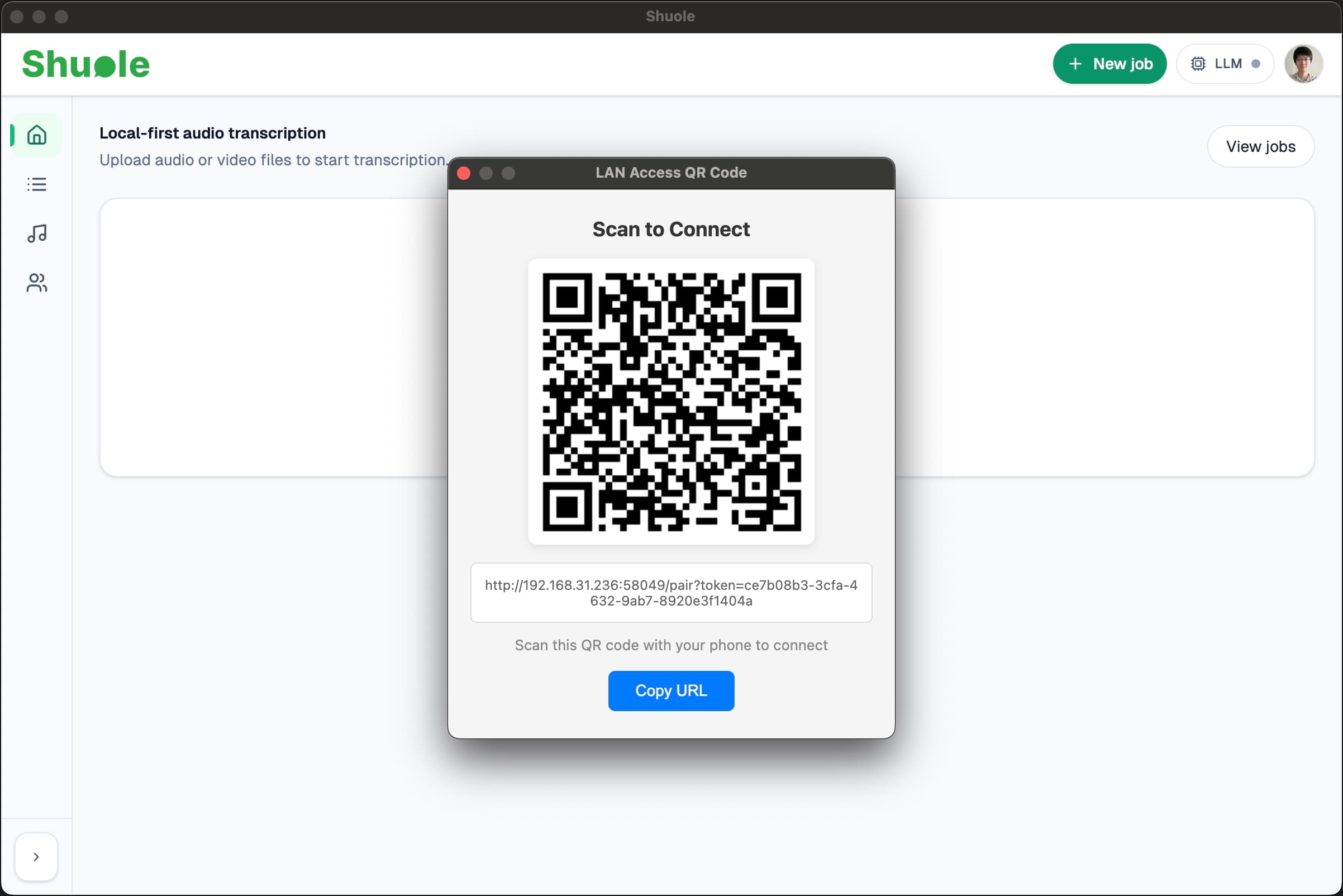
- Go to Settings → Show LAN Access QR Code
- Scan the QR code with your phone or tablet
- The device will open Shuole in its browser and pair automatically
The QR code contains a pairing URL that securely connects your device to Shuole. Once paired, the device remembers the connection for future use.
Note: After scanning the QR code and opening Shuole in your device browser, use email and code to sign up or sign in.
Related
- Quick Start — Get started with Shuole
- Transcription — Core transcription features